Saturday, 23 June 2018

What Is Secure Boot? How Its Works on Windows 8 and 10.


Modern PCs ship with a feature called “Secure Boot” enabled. This is a platform feature in UEFI, which replaces the traditional PC BIOS. If a PC manufacturer wants to place a “Windows 10” or “Windows 8” logo sticker to their PC, Microsoft requires they enable Secure Boot and follow some guidelines.

How Secure Boot Secures Your PC’s Boot Process

Secure Boot isn’t just designed to make running Linux more difficult. There are real security advantages to having Secure Boot enabled, and even Linux users can benefit from them.


A traditional BIOS will boot any software. When you boot your PC, it checks the hardware devices according to the boot order you’ve configured, and attempts to boot from them. Typical PCs will normally find and boot the Windows boot loader, which goes on to boot the full Windows operating system. If you use Linux, the BIOS will find and boot the GRUB boot loader, which most Linux distributions use.


However, it’s possible for malware, such as a rootkit, to replace your boot loader. The rootkit could load your normal operating system with no indication anything was wrong, staying completely invisible and undetectable on your system. The BIOS doesn’t know the difference between malware and a trusted boot loader–it just boots whatever it finds.


Secure Boot is designed to stop this. Windows 8 and 10 PCs ship with Microsoft’s certificate stored in UEFI. UEFI will check the boot loader before launching it and ensure it’s signed by Microsoft. If a rootkit or another piece of malware does replace your boot loader or tamper with it, UEFI won’t allow it to boot. This prevents malware from hijacking your boot process and concealing itself from your operating system.

How You Can Disable or Control Secure Boot:
If that was all Secure Boot did, you wouldn’t be able to run any non-Microsoft-approved operating system on your PC. But you can likely control Secure Boot from your PC’s UEFI firmware, which is like the BIOS in older PCs.

There are two ways to control Secure Boot. The easiest method is to head to the UEFI firmware and disable it entirely. The UEFI firmware won’t check to ensure you’re running a signed boot loader, and anything will boot. You can boot any Linux distribution or even install Windows 7, which doesn’t support Secure Boot. Windows 8 and 10 will work fine, you’ll just lose the security advantages of having Secure Boot protect your boot process.

You can can also further customize Secure Boot. You can control which signing certificates Secure Boot offers. You’re free to both install new certificates and remove existing certificates. An organization that ran Linux on its PCs, for example, could choose to remove Microsoft’s certificates and install the organization’s own certificate in its place. Those PCs would then only boot boot loaders approved and signed by that specific organization.

An individual could do this, too–you could sign your own Linux boot loader and ensure your PC could only boot boot loaders you personally compiled and signed. That’s the kind of control and power Secure Boot offers.

What Microsoft Requires of PC Manufacturers
Microsoft doesn’t just require PC vendors enable Secure Boot if they want that nice “Windows 10” or “Windows 8” certification sticker on their PCs. Microsoft requires PC manufacturers implement it in a specific way.

For Windows 8 PCs, manufacturers had to give you a way to turn Secure Boot off. Microsoft required PC manufacturers to put a Secure Boot kill switch in users’ hands.

For Windows 10 PCs, this is no longer mandatory. PC manufacturers can choose to enable Secure Boot and not give users a way to turn it off. However, we’re not actually aware of any PC manufacturers that do this.

Similarly, while PC manufacturers have to include Microsoft’s main “Microsoft Windows Production PCA” key so Windows can boot, they don’t have to include the “Microsoft Corporation UEFI CA” key. This second key is only recommended. It’s the second, optional key that Microsoft uses to sign Linux boot loaders. Ubuntu’s documentation explains this.

In other words, not all PCs will necessarily boot signed Linux distributions with Secure Boot turned on. Again, in practice, we haven’t seen any PCs that did this. Perhaps no PC manufacturer wants to make the only line of laptops you can’t install Linux on.

For now, at least, mainstream Windows PCs should allow you to disable Secure Boot if you like, and they should boot Linux distributions that have been signed by Microsoft even if you don’t disable Secure Boot.


What Is Secure Boot? How Its Works on Windows 8 and 10.


Modern PCs ship with a feature called “Secure Boot” enabled. This is a platform feature in UEFI, which replaces the traditional PC BIOS. If a PC manufacturer wants to place a “Windows 10” or “Windows 8” logo sticker to their PC, Microsoft requires they enable Secure Boot and follow some guidelines.

How Secure Boot Secures Your PC’s Boot Process

Secure Boot isn’t just designed to make running Linux more difficult. There are real security advantages to having Secure Boot enabled, and even Linux users can benefit from them.


A traditional BIOS will boot any software. When you boot your PC, it checks the hardware devices according to the boot order you’ve configured, and attempts to boot from them. Typical PCs will normally find and boot the Windows boot loader, which goes on to boot the full Windows operating system. If you use Linux, the BIOS will find and boot the GRUB boot loader, which most Linux distributions use.


However, it’s possible for malware, such as a rootkit, to replace your boot loader. The rootkit could load your normal operating system with no indication anything was wrong, staying completely invisible and undetectable on your system. The BIOS doesn’t know the difference between malware and a trusted boot loader–it just boots whatever it finds.


Secure Boot is designed to stop this. Windows 8 and 10 PCs ship with Microsoft’s certificate stored in UEFI. UEFI will check the boot loader before launching it and ensure it’s signed by Microsoft. If a rootkit or another piece of malware does replace your boot loader or tamper with it, UEFI won’t allow it to boot. This prevents malware from hijacking your boot process and concealing itself from your operating system.

How You Can Disable or Control Secure Boot:
If that was all Secure Boot did, you wouldn’t be able to run any non-Microsoft-approved operating system on your PC. But you can likely control Secure Boot from your PC’s UEFI firmware, which is like the BIOS in older PCs.

There are two ways to control Secure Boot. The easiest method is to head to the UEFI firmware and disable it entirely. The UEFI firmware won’t check to ensure you’re running a signed boot loader, and anything will boot. You can boot any Linux distribution or even install Windows 7, which doesn’t support Secure Boot. Windows 8 and 10 will work fine, you’ll just lose the security advantages of having Secure Boot protect your boot process.

You can can also further customize Secure Boot. You can control which signing certificates Secure Boot offers. You’re free to both install new certificates and remove existing certificates. An organization that ran Linux on its PCs, for example, could choose to remove Microsoft’s certificates and install the organization’s own certificate in its place. Those PCs would then only boot boot loaders approved and signed by that specific organization.

An individual could do this, too–you could sign your own Linux boot loader and ensure your PC could only boot boot loaders you personally compiled and signed. That’s the kind of control and power Secure Boot offers.

What Microsoft Requires of PC Manufacturers
Microsoft doesn’t just require PC vendors enable Secure Boot if they want that nice “Windows 10” or “Windows 8” certification sticker on their PCs. Microsoft requires PC manufacturers implement it in a specific way.

For Windows 8 PCs, manufacturers had to give you a way to turn Secure Boot off. Microsoft required PC manufacturers to put a Secure Boot kill switch in users’ hands.

For Windows 10 PCs, this is no longer mandatory. PC manufacturers can choose to enable Secure Boot and not give users a way to turn it off. However, we’re not actually aware of any PC manufacturers that do this.

Similarly, while PC manufacturers have to include Microsoft’s main “Microsoft Windows Production PCA” key so Windows can boot, they don’t have to include the “Microsoft Corporation UEFI CA” key. This second key is only recommended. It’s the second, optional key that Microsoft uses to sign Linux boot loaders. Ubuntu’s documentation explains this.

In other words, not all PCs will necessarily boot signed Linux distributions with Secure Boot turned on. Again, in practice, we haven’t seen any PCs that did this. Perhaps no PC manufacturer wants to make the only line of laptops you can’t install Linux on.

For now, at least, mainstream Windows PCs should allow you to disable Secure Boot if you like, and they should boot Linux distributions that have been signed by Microsoft even if you don’t disable Secure Boot.


What Is BIOS? How Its Works.

                       What Is BIOS?


Your computer’s BIOS is the first thing that loads when you start your computer. It initializes your hardware before booting an operating system from your hard drive or another device. Many low-level system settings are only available in your BIOS.
Modern computers predominantly ship with UEFI firmware, which is the successor to the traditional BIOS. But UEFI firmware and the BIOS are fairly similar. We’ve even seen modern PCs refer to their UEFI firmware settings screen as the “BIOS”.
BIOS and UEFI Explained


BIOS stands for “Basic Input/Output System”, and is a type of firmware stored on a chip on your motherboard. When you start your computer, the computers boots the BIOS, which configures your hardware before handing off to a boot device (usually your hard drive).

UEFI stands for “Unified Extensible Firmware Interface”. It’s the successor to the traditional BIOS. UEFI offers support for boot volumes over 2 TB in size, support for more than four partitions on a drive, faster booting, and enables more modern features. For example, only systems with UEFI firmware support Secure Boot to secure the boot process against rootkits.

Whether your computer has a BIOS or UEFI firmware doesn’t matter much in most situations. Both are low-level software that starts when you boot your PC and sets things up. Both offer interfaces you can access to change a variety of system settings. For example, you can modify your boot order, tweak overclocking options, lock down your computer with a boot password, enable virtualization hardware support, and tweak other low-level features.

What Is BIOS? How Its Works.

                       What Is BIOS?


Your computer’s BIOS is the first thing that loads when you start your computer. It initializes your hardware before booting an operating system from your hard drive or another device. Many low-level system settings are only available in your BIOS.
Modern computers predominantly ship with UEFI firmware, which is the successor to the traditional BIOS. But UEFI firmware and the BIOS are fairly similar. We’ve even seen modern PCs refer to their UEFI firmware settings screen as the “BIOS”.
BIOS and UEFI Explained


BIOS stands for “Basic Input/Output System”, and is a type of firmware stored on a chip on your motherboard. When you start your computer, the computers boots the BIOS, which configures your hardware before handing off to a boot device (usually your hard drive).

UEFI stands for “Unified Extensible Firmware Interface”. It’s the successor to the traditional BIOS. UEFI offers support for boot volumes over 2 TB in size, support for more than four partitions on a drive, faster booting, and enables more modern features. For example, only systems with UEFI firmware support Secure Boot to secure the boot process against rootkits.

Whether your computer has a BIOS or UEFI firmware doesn’t matter much in most situations. Both are low-level software that starts when you boot your PC and sets things up. Both offer interfaces you can access to change a variety of system settings. For example, you can modify your boot order, tweak overclocking options, lock down your computer with a boot password, enable virtualization hardware support, and tweak other low-level features.

How to Disable Automatic App Updates in Android Phone

By default, Android apps downloaded from the Google Play Store are automatically updated. If you would rather review the updates and any new or changed permissions associated with the updates, you can choose to disable automatic updates.

The options for automatic updates are slightly different in the new version (5.0) of the Play Store. We will show you how to do it in both the old and the new versions.


Google Play Store Prior to Version 5.0
To turn off automatic updates in versions of the Play Store earlier than 5.0, touch the Play Store icon on your Home screen.
To turn off automatic updates in versions o
f the Play Store earlier than 5.0, touch the Play Store icon on your Home screen.

01_touching_play_store_icon

In the Play Store, touch the menu button in the upper-left corner of the screen.

02_touching_menu_in_play_store
Touch “Settings” on the menu.

03_touching_settings
The “Auto-update apps” option is in the “General” section of the “Settings” screen. If it says “Auto-update apps at any time. Data charges may apply,” then your apps will be automatically updated. To turn this option off, touch “Auto-update apps.”
04_touching_auto_update_apps
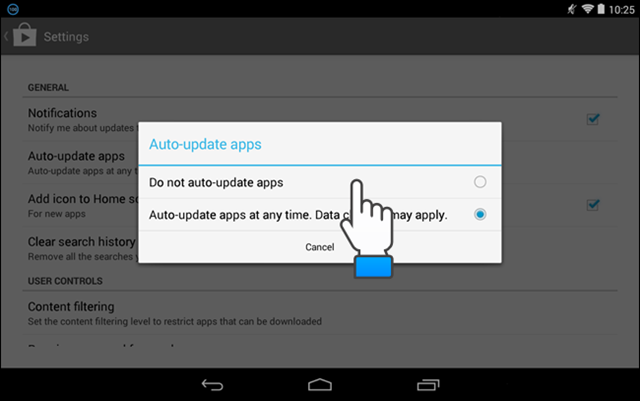
On the “Auto-update apps” dialog box, touch “Do not auto-update apps.”
05_touching_do_not_auto_update_apps


The dialog box closes and the “Auto-update apps” option is updated with the “Do not auto-update apps” setting. Touch the Play Store icon in the upper-left corner of the screen to go back to the main Play Store screen. You can also touch the Back button on your device.

06_auto_update_changed

On a Google Nexus 7, when you hold the device in landscape mode, and you’re on the “My apps” screen, the screen is split into two panes. The left pane contains your list of “Installed” apps and “All apps”. The left pane contains buttons allowing you to “Open,” “Update,” or “Uninstall” the app. The “Allow automatic updating” check box is also available in the right pane.

07_allow_automatic_updating

If you select the “Allow automatic updating” check box so there is a check mark in the box, the following dialog box displays asking if you want to turn on auto-update for all apps.

08_enabling_auto_update_using_check_box

NOTE: You can view details about the permissions required for an app by touching “Permission details” at the bottom of the app’s page in the Google Play Store.

09_permission_details

Google Play Store Version 5.0

To turn off automatic updates in version 5.0 of the Play Store, open the Play Store and touch the menu icon in the upper-left corner of the screen.

10_note4_touching_menu_icon_in_store
Scroll down and Touch “Settings” on the menu.

11_note4_touching_settings
If your apps have been updating automatically, the “Auto-update apps” setting in the “General” section on the “Settings” screen will read “Auto-update apps at any time. Data charges may apply.” To change this setting, touch “Auto-update apps.”
12_note4_touching_auto_update_apps
The “Auto-update apps” dialog box displays. To prevent apps from automatically updating, touch the “Do not auto-update apps” option.
NOTE: If you want apps to update automatically, but you want to avoid going over your data limit, touch the “Auto-update apps over Wi-Fi only” option. That option allows your apps to automatically update only when you are connected to a Wi-Fi network so you don’t use any data to do so.
13_note4_touching_do_not_auto_update
In version 5.0 of the Google Play Store, you can still view permissions for an app by touching “Permission details” at the bottom of the app’s page.
14_note4_permission_details
Manually updating apps allows you to review the permissions for each one, making sure they are ones you either agree with or can tolerate.

How to Disable Automatic App Updates in Android Phone

By default, Android apps downloaded from the Google Play Store are automatically updated. If you would rather review the updates and any new or changed permissions associated with the updates, you can choose to disable automatic updates.

The options for automatic updates are slightly different in the new version (5.0) of the Play Store. We will show you how to do it in both the old and the new versions.


Google Play Store Prior to Version 5.0
To turn off automatic updates in versions of the Play Store earlier than 5.0, touch the Play Store icon on your Home screen.
To turn off automatic updates in versions o
f the Play Store earlier than 5.0, touch the Play Store icon on your Home screen.

01_touching_play_store_icon

In the Play Store, touch the menu button in the upper-left corner of the screen.

02_touching_menu_in_play_store
Touch “Settings” on the menu.

03_touching_settings
The “Auto-update apps” option is in the “General” section of the “Settings” screen. If it says “Auto-update apps at any time. Data charges may apply,” then your apps will be automatically updated. To turn this option off, touch “Auto-update apps.”
04_touching_auto_update_apps
On the “Auto-update apps” dialog box, touch “Do not auto-update apps.”
05_touching_do_not_auto_update_apps


The dialog box closes and the “Auto-update apps” option is updated with the “Do not auto-update apps” setting. Touch the Play Store icon in the upper-left corner of the screen to go back to the main Play Store screen. You can also touch the Back button on your device.

06_auto_update_changed

On a Google Nexus 7, when you hold the device in landscape mode, and you’re on the “My apps” screen, the screen is split into two panes. The left pane contains your list of “Installed” apps and “All apps”. The left pane contains buttons allowing you to “Open,” “Update,” or “Uninstall” the app. The “Allow automatic updating” check box is also available in the right pane.

07_allow_automatic_updating

If you select the “Allow automatic updating” check box so there is a check mark in the box, the following dialog box displays asking if you want to turn on auto-update for all apps.

08_enabling_auto_update_using_check_box

NOTE: You can view details about the permissions required for an app by touching “Permission details” at the bottom of the app’s page in the Google Play Store.

09_permission_details

Google Play Store Version 5.0

To turn off automatic updates in version 5.0 of the Play Store, open the Play Store and touch the menu icon in the upper-left corner of the screen.

10_note4_touching_menu_icon_in_store
Scroll down and Touch “Settings” on the menu.

11_note4_touching_settings
If your apps have been updating automatically, the “Auto-update apps” setting in the “General” section on the “Settings” screen will read “Auto-update apps at any time. Data charges may apply.” To change this setting, touch “Auto-update apps.”
12_note4_touching_auto_update_apps
The “Auto-update apps” dialog box displays. To prevent apps from automatically updating, touch the “Do not auto-update apps” option.
NOTE: If you want apps to update automatically, but you want to avoid going over your data limit, touch the “Auto-update apps over Wi-Fi only” option. That option allows your apps to automatically update only when you are connected to a Wi-Fi network so you don’t use any data to do so.
13_note4_touching_do_not_auto_update
In version 5.0 of the Google Play Store, you can still view permissions for an app by touching “Permission details” at the bottom of the app’s page.
14_note4_permission_details
Manually updating apps allows you to review the permissions for each one, making sure they are ones you either agree with or can tolerate.

Thursday, 21 June 2018

Download Punjabi Font AnmolLipi

 Download Punjabi Font AnmolLipi
AnmolLipi Font

DOWNLOAD


Featured post

SBI Customer Care, 24x7 Toll Free Number

SBI Customer Care, 24x7 Toll Free Number SBI Customer Care, 24x7 Toll Free Number State Bank of India (SBI) is the largest bank of the co...

Featured